前几天写了一篇有关轮播图制作的博客,但当时没有添加定时的效果,说白了就是没有自动轮播的效果,今天来说一下怎样添加自动轮播效果。如图: HTML代码: CSS代码: JS代码: 总结: 添加定时器效果其实不难,但是要注意设置定时器时一定要声明一个全局变量,用来储存定时器,方便后面清除定时器后再次启动相同的定时器。 视频讲解链接:
如何用最简单的代码制作带定时器的轮播图
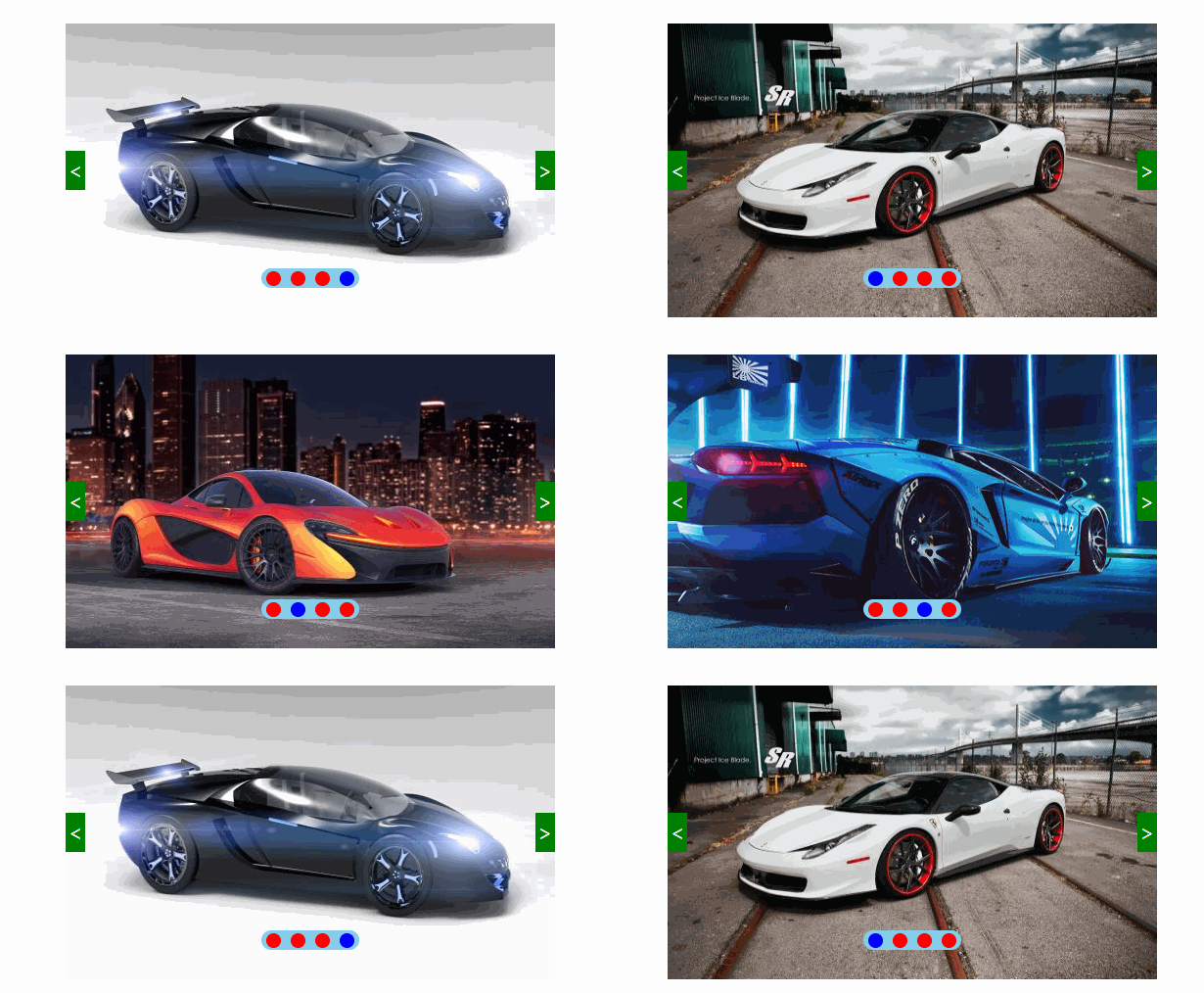
<div class="box" id="box"> <img src="img/1.jpg" alt=""> <!-- <img src="img/1.jpg" alt=""> <img src="img/2.jpg" alt=""> <img src="img/3.jpg" alt=""> --> <div class="btn btn_l"> < </div> <div class="btn btn_r"> > </div> <ul class="points"> <li class="red blue"></li> <li class="red"></li> <li class="red"></li> <li class="red"></li> </ul> </div> * { margin: 0; padding: 0; list-style: none; } .box { width: 500px; height: 300px; position: absolute; top: 0; bottom: 0; left: 0; right: 0; margin: auto; } img { width: 500px; height: 300px; } .btn, .points { position: absolute; cursor: pointer; } .btn { width: 20px; height: 40px; background: green; color: white; font-size: 20px; text-align: center; line-height: 40px; top: 50%; margin-top: -20px; z-index: 999; } .btn_l { left: 0; } .btn_r { right: 0; } .points { width: 100px; height: 20px; border-radius: 20px; background: skyblue; left: 50%; margin-left: -50px; bottom: 30px; } .points .red { width: 15px; height: 15px; border-radius: 50%; background-color: red; float: left; margin: 2.5px 5px; } .points li.blue { background: blue; } // 1.获取元素 var oImg = document.getElementsByTagName("img")[0]; var oBtn_l = document.getElementsByClassName("btn_l")[0]; var oBtn_r = document.getElementsByClassName("btn_r")[0]; var aLi = document.getElementsByTagName("li"); var oBox=document.getElementById("box"); var index = 1; var timer; function clear() { for (var i = 0; i < aLi.length; i++) { aLi[i].className = "red" } aLi[index - 1].className = "red blue"; } function next() { index == 4 ? index = 1 : index++; oImg.src = "img/" + index + ".jpg"; clear(); } // 点击右侧按钮 oBtn_r.onclick = function () { next(); } // 点击左按钮 oBtn_l.onclick = function () { index == 1 ? index = 4 : index--; oImg.src = "img/" + index + ".jpg"; clear(); } // 下面4个点的点击 for (var i = 0; i < aLi.length; i++) { aLi[i].a = i; aLi[i].onclick = function () { index = this.a + 1; oImg.src = "img/" + index + ".jpg"; clear(); } } // for(let i=0;i<aLi.length;i++){ // aLi[i].οnclick=function(){ // index=i+1; // oImg.src="img/"+index+".jpg" // } // } // 添加定时器 timer=setInterval(next, 1000); // 鼠标移入时,清除定时器 oBox.onmouseover=function(){ clearInterval(timer); } // 鼠标移出时 oBox.onmouseout=function(){ timer=setInterval(next, 1000); }
https://www.bilibili.com/video/BV1DV411r7cf/
本网页所有视频内容由 imoviebox边看边下-网页视频下载, iurlBox网页地址收藏管理器 下载并得到。
ImovieBox网页视频下载器 下载地址: ImovieBox网页视频下载器-最新版本下载
本文章由: imapbox邮箱云存储,邮箱网盘,ImageBox 图片批量下载器,网页图片批量下载专家,网页图片批量下载器,获取到文章图片,imoviebox网页视频批量下载器,下载视频内容,为您提供.
阅读和此文章类似的: 全球云计算
 官方软件产品操作指南 (170)


